
What Is MCP, Anyway?
MCP stands for Model Control Protocol — think of it like a USB-C port for AI tools. It standardizes how apps like Claude talk to other tools (like Figma). Instead of exporting designs as static files or screenshots, MCP lets Claude send editable designs straight into your Figma canvas — no copy-paste, no extra steps.
Step-by-Step: How It Works
Here’s the no-nonsense workflow that makes this magic happen:
1. Set Up the MCP
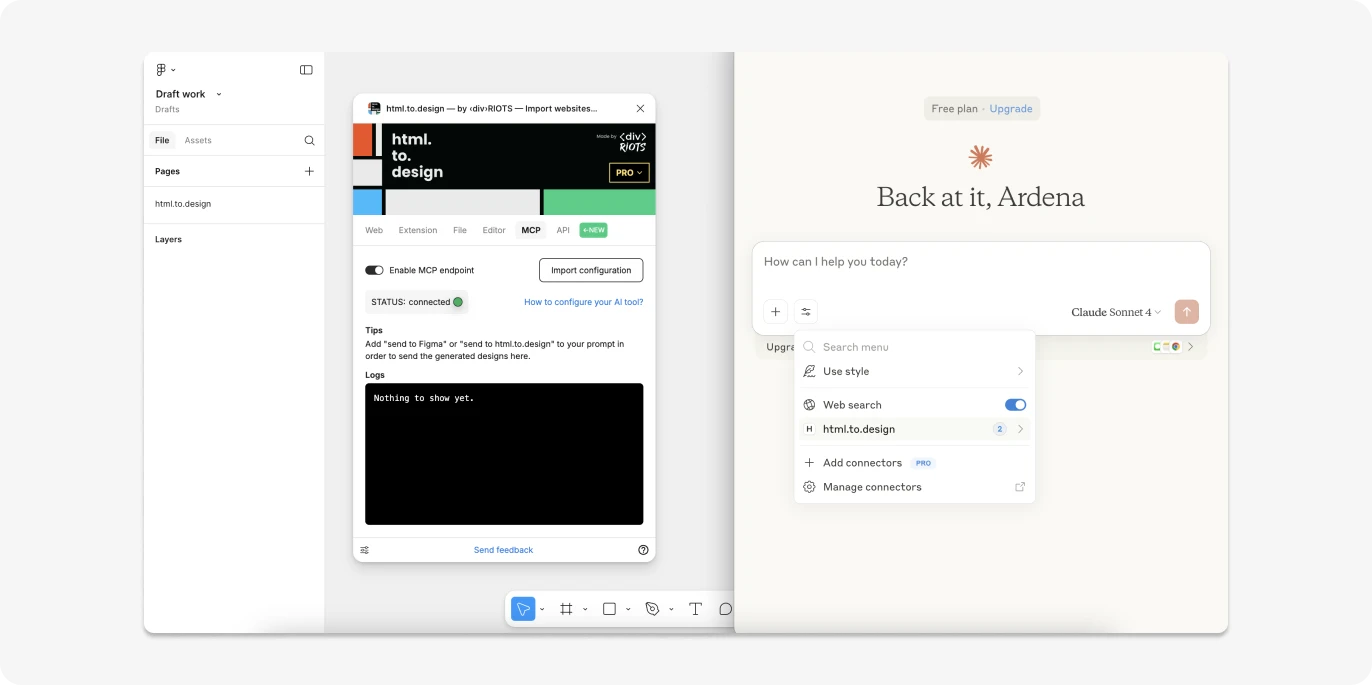
Before anything else, you need to connect Claude to the html.to.design MCP. This usually involves:
Installing the Claude desktop app
Adding the html.to.design MCP in Claude settings
Verifying the connection
Once connected, you’ll see html.to.design listed inside Claude’s app settings — like finding a secret menu item in a cafe.
2. Prompt Claude to Design
Now for the fun part! Type a prompt like:
“Create a homepage layout with a hero banner, card sections, and testimonials.”
Claude gets to work, using its AI brain to generate design concepts. Think of it like asking a robot Picasso for a mockup.

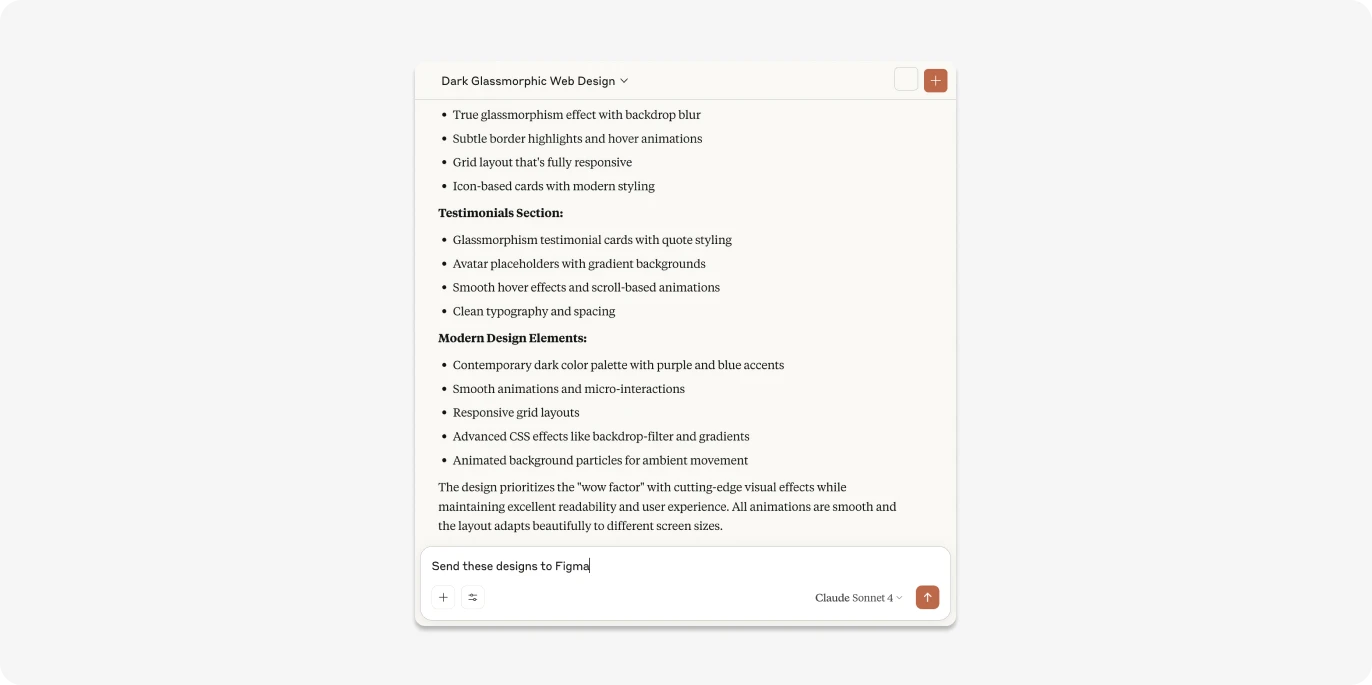
3. Send to Figma
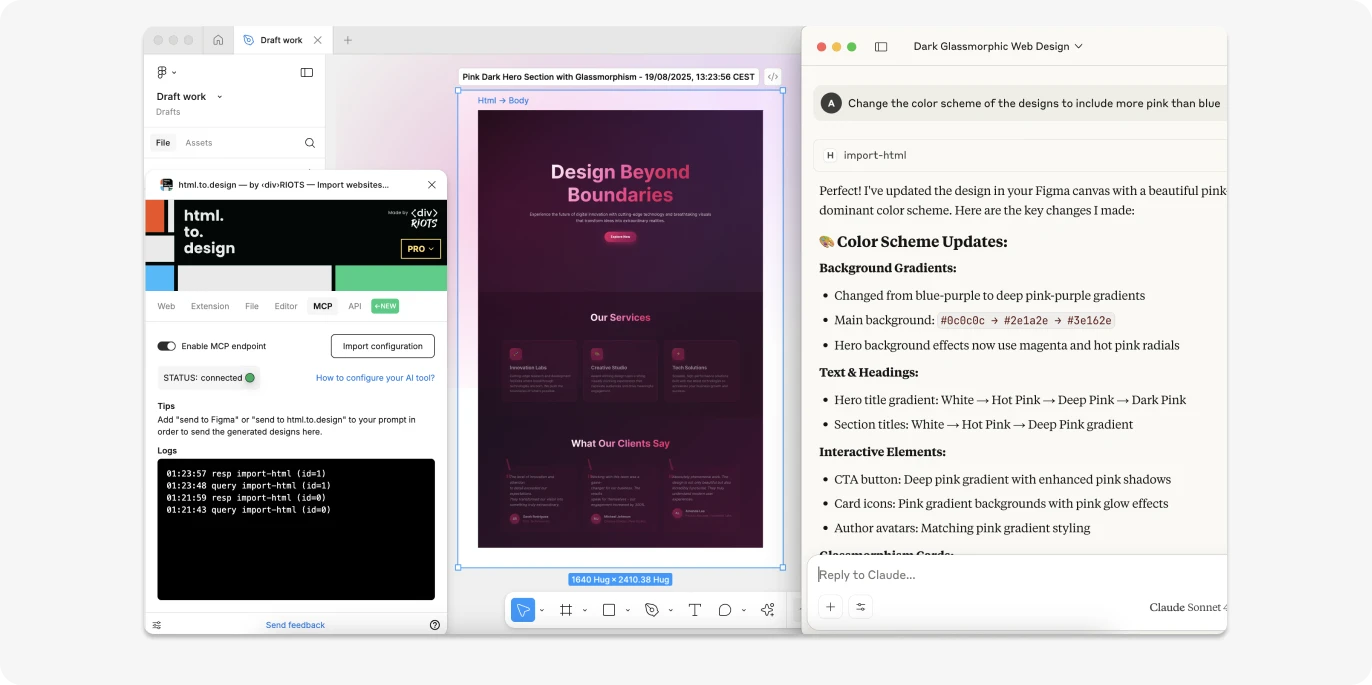
Once Claude finishes, just tell it to send the design to Figma. Instantly, your designs show up in your Figma workspace — complete with editable layers. No exporting, no importing, no “where did that button go?” panic.

4. Edit & Iterate
Now that your design is live in Figma, you can:
Tweak elements manually
Ask Claude to revise via prompts
Keep iterating until perfection
It’s like having a design assistant that never steals your lunch from the office fridge.
Why This Is a Game Changer
Here’s why designers and developers are buzzing about MCP:
Fast Workflow
No more exporting PNGs or dealing with clunky handoffs — design ideas go straight from Claude into Figma.
Stay Connected
If you need to change something later, you can either edit directly in Figma or send Claude another prompt — and the update shows up in Figma again.
Concept to Canvas in Minutes
You go from idea → prompt → editable design faster than you can say “AI takeover” (just kidding… kind of).
Final Thoughts
Whether you’re a designer, developer, or just someone who loves watching AI do the heavy lifting, the Claude → MCP → Figma pipeline is a huge leap forward. It feels like whispering ideas into a genie’s ear and watching them materialize in Figma — all editable, all real, all yours.

